Deliver Images from a Mobile Device
You can deliver images captured with your smart device or stored in its image folder using SLNX workflows to destinations such as an e-mail address, a network folder, a file server, etc.
- The administrator configures the workflow to be used for delivery in advance.
- You can deliver JPEG, TIFF, and PDF images.
- When the SLNX mobile app cannot access the server, the cached workflow selection screen is displayed. You can select and import images and enter metadata, but the screens for selecting and configuring a destination are not displayed. When the SLNX mobile app connects to the server, images are delivered. For details about the operations after a connection is established, refer toDeliver Jobs Specified While Offline
-
On the home screen of the Streamline NX mobile app, press the [Select a Group] button, and select a group.
-
Select the workflow to use for delivery.
-
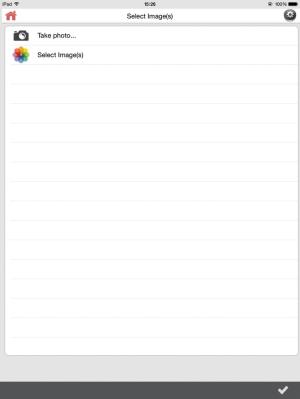
Select the image to be delivered.
-
To deliver a newly captured image
-
Press [Take photo...].
-
Take a photo.
-
Select the image by pressing and holding the image with two fingers.
-
-
To deliver an image stored in the image folder of the mobile device
-
Press [Select Image(s)].
-
From the image folder on the mobile device, select the image to be delivered.
-
-
To select multiple images, repeat Step 3.
-
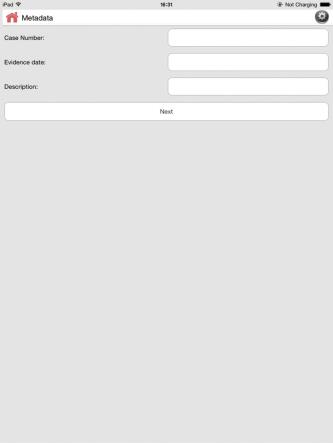
On the Metadata screen, configure the metadata, and press [Next].
Document Name cannot be configured in Mobile Device.
The Metadata screen displays the metadata items configured by the administrator.
-
Select a delivery service, and specify the delivery destination.
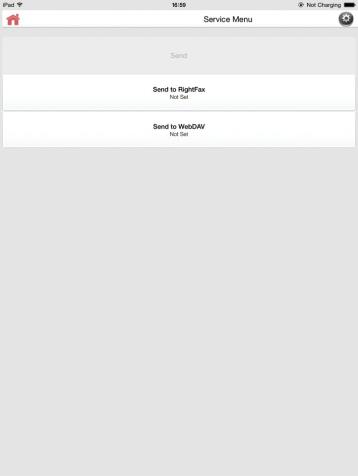
For workflows with only one configured delivery service, the Delivery Service screen is displayed instead of the delivery service selection screen.
When configuring more than one distribution service, you can view the actual destination in the detailed information screen that appears after you select a distribution service.
-
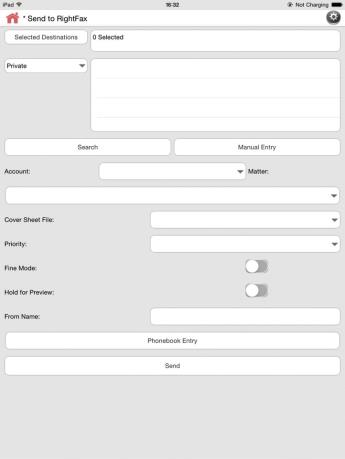
After specifying the delivery service, press [Next].
-
Enter the document name as necessary.
-
To change the settings of a process connector configured in a workflow, press [
 ] on the delivery service selection screen.
 -
On the process connector configuration screen, configure the parameters of the process connector, and then press [Done].
-
Press [Send].
Delivery of the images starts.
- For details about entering text, operating the camera, and performing other mobile device operations, see the user's guide supplied with the mobile device.
- When the captured image is too large, the options for resizing the image are displayed after you specify a destination and press [Next]. Select Small (150 KB), Medium (350 KB), Large (699 KB), or Actual Size (2.1 MB) for the image size.
